
Formulae in Excel are what make it such a great tool. Without formulae you’ve just got a huge table with numbers in it, and no way to do anything useful with it. The formulae that you write save time and prevent mistakes by human error in calculations. But is there a formula for writing formulae? Yes, in a way, there is!
Drag and Copy
Consider a table which shows a group of companies with their monthly turnover for six months:
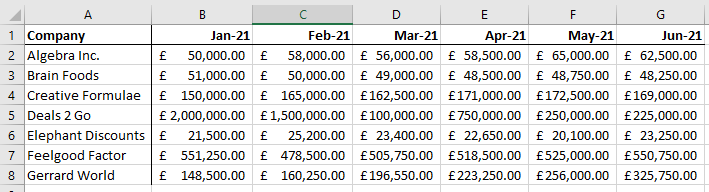
There is a simple formula to add together each company’s monthly figures to calculate their total for six months, and likewise a similar formula will find the total that all the companies made in each month. We’ll write this formula for Algebra Inc. and for Jan-21 only.
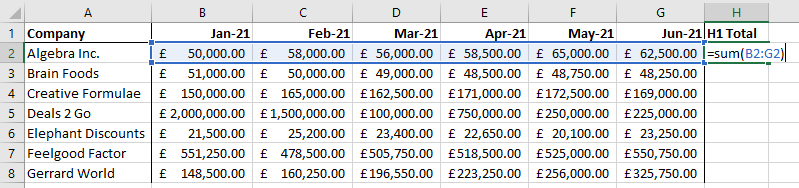
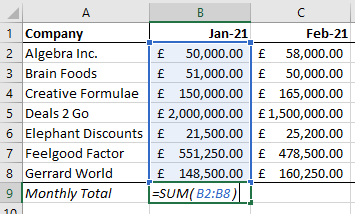
Now you could, if you chose, write similar formulae for every company and every month. But what if there are a thousand companies? You wouldn’t want to do that. Enter the Drag and Copy function…
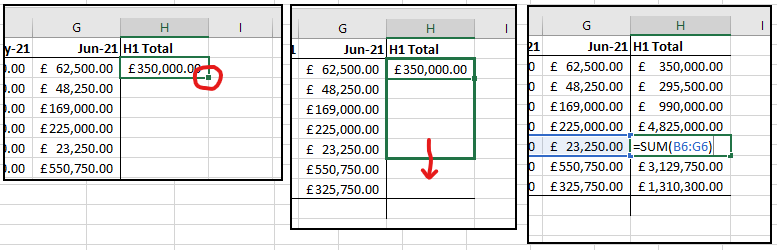
First of all click on the cell which contains the formula you want to copy. Secondly find the small square block at the bottom right corner – press and hold on that block and drag it down or across to where you want the formula to fill. Thirdly, check your formulae!
You should find that the formula hasn’t just copied into each cell. It’s done something far more useful than that – it’s transformed into the correct formula for each cell. This is to do with relative cell referencing. You will notice that every cell has the same formula except that the row numbers have altered to match the cell number. Every formula with a relative reference will adjust the row numbers as you move up and down and the column letters as you move left and right. Doing the same thing with the Monthly Total column footers will move the references across the columns.
So, this is very useful. But, there is more…
Absolute / Relative Cell Referencing
A cell reference can be absolute as well. Perhaps there are cells which contain data for a formula which you don’t want to drag across with your formula. Like this…
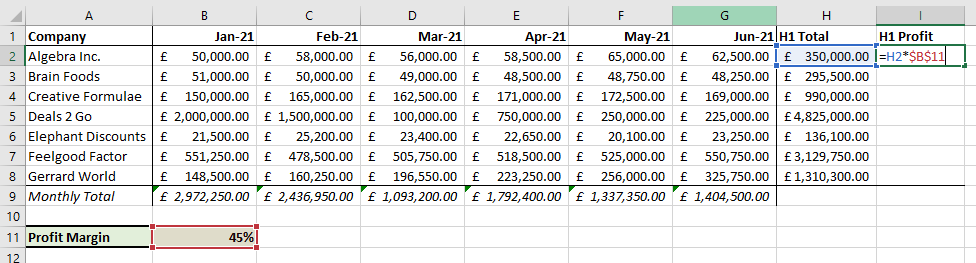
We’ve got a profit margin cell which is to be applied to each total to calculate the expected profit. The formula is:
=H2*$B$11Notice the $ (string) signs in the second cell reference. These are put there to show that it is an absolute cell reference. In fact, there are two $ symbols because we are saying that both the column and row reference are absolute. We’ll do some which aren’t later.
The reason for the absolute reference is because if we don’t do that and drag the formula downwards, the reference to that cell will also move downwards. There is only one cell though, so we have to keep it exactly where it is.
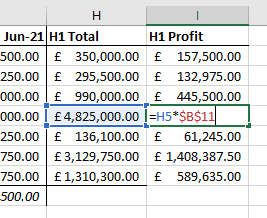
We’ve dragged it down, and every cell has a different H1 Total row, but the exact same Profit Margin cell. Great!
Combined Absolute / Relative Cell Reference
Now – let’s do something a bit fancier. Let’s do a cumulative turnover for each company in each month using one formula. There may well be a slightly simpler way to do this, but we are trying to illustrate the referencing, so bear with me.

First of all let’s get the company names and months sorted. I’ve just put =A1 at the top left of where my new table will be and then I’ll drag it both to the right and downwards.
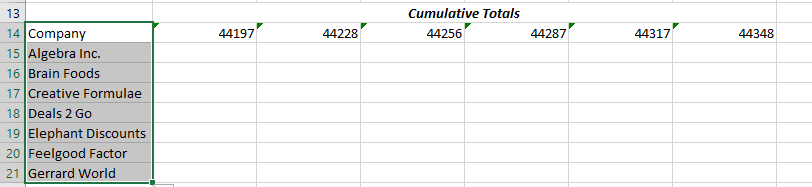
One thing you’ve probably already noticed is that the formating does not remain the same. This can be easily copied in bulk from the table above and will capture the bold/italic/underline format, the date format, and the borders.

Next, and this may seem odd, but I’m going to put a simple formula in cell B15 to sum all the values between B2 and B2.
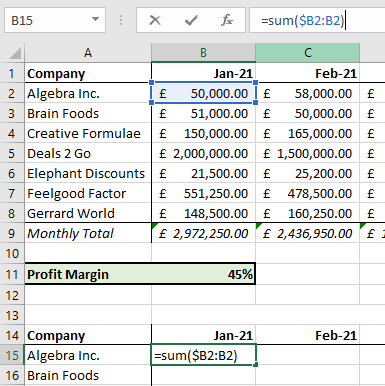
Note the $ symbol in front of the first B. This indicates that the column B in the first cell reference is absolute. In other words, when you drag it across the B in the first reference will remain as a B. The 2, however, will increase as you drag downwards. What we’re going to do next will populate the entire second table. Drag the formula first right and then downwards to fill the whole table. The second stage will copy the entire row of formulae downwards, which is fine.
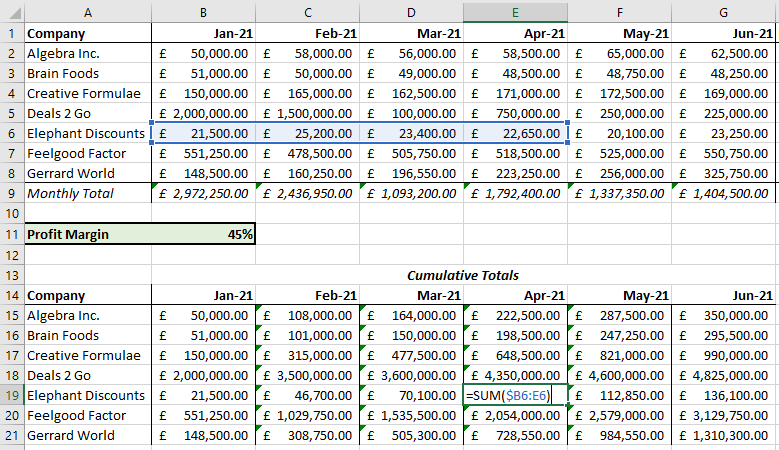
So, on checking the formula in E19, you can see that the correct row has been summed, and it has summed it from the first column (B) all the way up to the current one at that time (April) which is column E. The absolute reference $B meant that when dragging across to the right the first part of the range stayed the same, but the end-point of the range extended across further each time.
In this latest example not one piece of data was duplicated. There were only two formulae used, and one of those was a very simple one to copy the company name and month heading. The second one filled across to create a different-sized range for each sum, and filled downwards to copy itself to each different company.
Conclusion
The drag and copy feature in Excel is a fantastic piece of programming. It is hugely versatile and can help you to program spreadsheets quicker and with fewer errors. You should have a play with the different ways you can use relative / absolute referencing to produce different results. Once you get the hang of this you will be using it all the time.